Sensory Evaluation  HOME CONTACT ABOUT US SUPPORT SENSORYTEST.COM
 
Sensory Evaluation  SIMS 2000 SOFTWARE QUESTION CHOICES CLIENT COMMENTS
 MARKETS VIEW REPORTS FREE EVALUATION
 TEST CHOICES GET DEMO SUPPORT


View More Reports
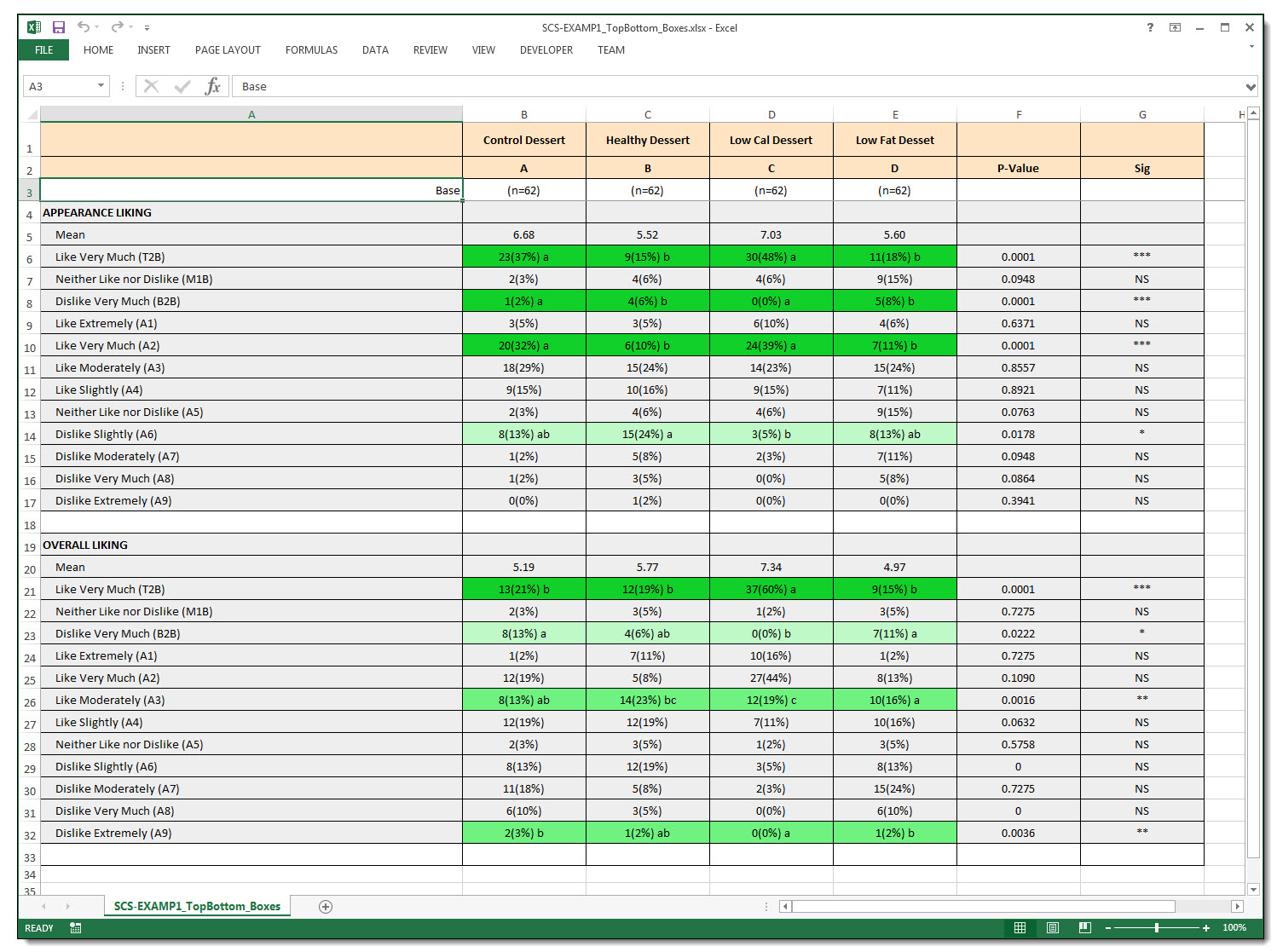
Top/Bottom 2 Boxes & 3 Boxes Advanced Analysis:

The Top/Bottom 2 Boxes & 3 Boxes Advanced Analysis Reports in SIMS 2000 summarizes the extreme observations for Hedonic Attributes. Market research studies often refer to positive and negative rating measures using the Top/Bottom 2 Boxes & 3 Boxes percentages as indicators of consumer acceptance.

Special thanks to Mr. Thomas Carr who was instrumental in the development of the proper specifications for statistics that were incorporated in all Top/Bottom 2 Boxes & 3 Boxes reports. Some of these statistic specifications are discussed below.


Index of this Web Page:
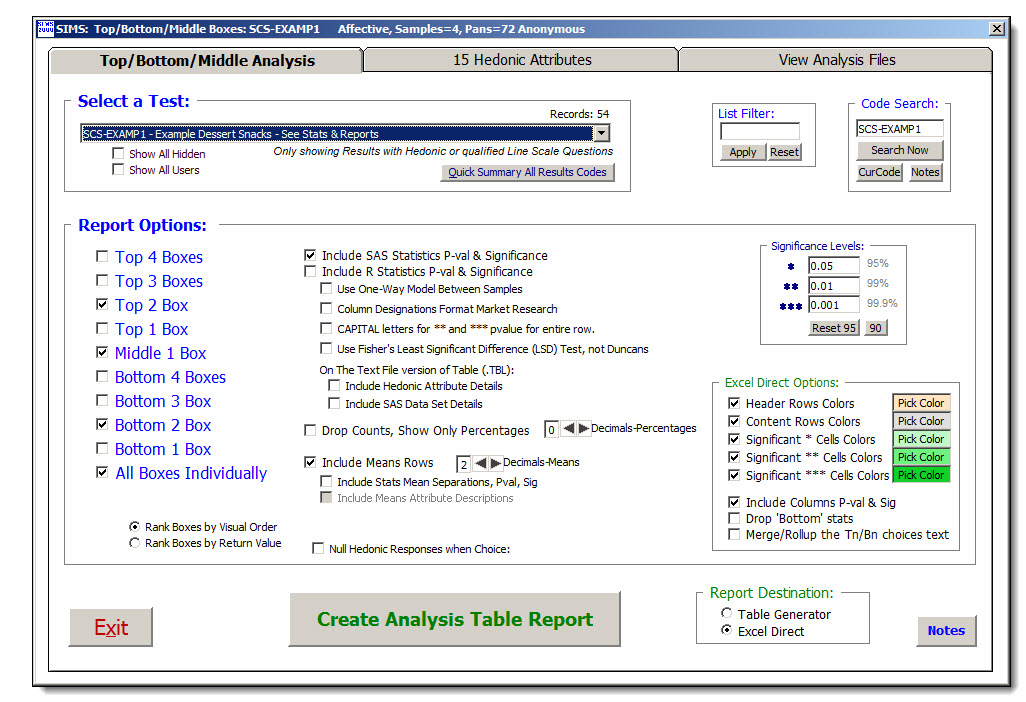
  1. Print Screen of Main Report Selection Form.
  2. Print Screen of Main Report Selection Form - Optional Hedonic Question Selection.
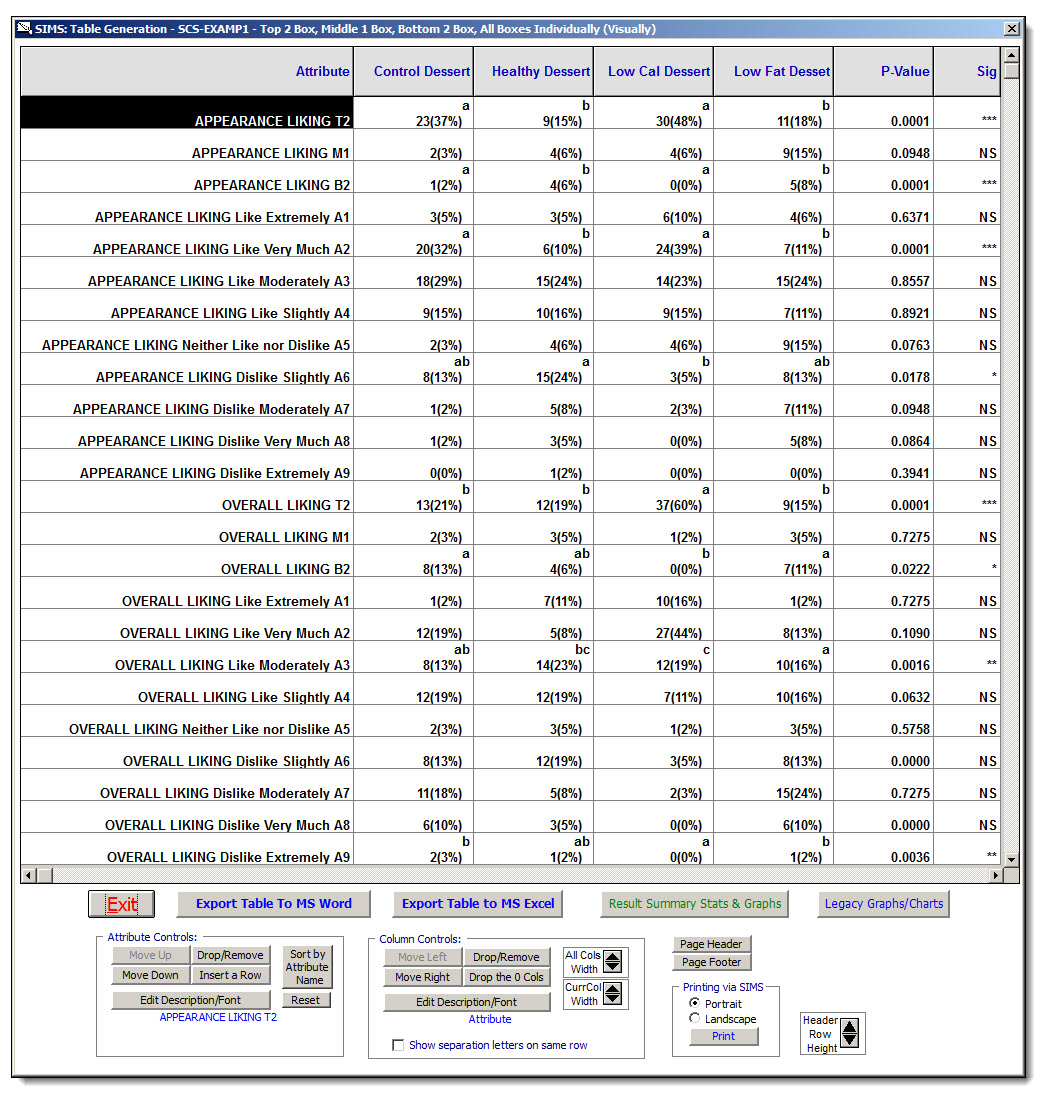
  3. Print Screen of the Generated Analysis Table - Ready for Sending to MS Word.
  4. Text Version of Analysis Table Report also showing with other selected options.
  5. Notes that will be available by Clicking the 'Notes' Button on Main Report Form.
  6. Example SAS Script file used to Generate the Top 2 Boxes Analysis Table.


1.   Print Screen of Main Report Selection Form.


2.   Print Screen of Main Report Selection Form - Optional Hedonic Question Selection.


3.   Print Screen of the Generated Analysis Table - Ready for Sending to MS Word.


4.   Text Version of Analysis Table Report also showing with other selected options.

SIMS 2000: Top 2 Boxes Analysis


Test Result Code: EXAMPLE1E


Sample Definitions:
S1 = Control
S2 = Experiment #1
S3 = Experiment #2


Top 2 Boxes
AttributeS1S2S3P-valSig
=========================================================
Liking 4(100%) 2(50%) 3(75%) 0.2441 NS
Burn 4(100%) 4(100%) 3(75%) 0.4219 NS
Appetizing 4(100%) 4(100%) 4(100%) 0.0000 NS

------------------------------------------------------------------

Including Hedonic Attribute Details

  Hedonic Attribute Description: Liking
     Hedonic Labels on Questionnaire are, by Seen Order in Label(n):
Label(1) = Like Very Much (Ret value: 5)
Label(2) = Like Moderately (Ret value: 4)
Label(3) = Neither Like nor Dislike   (Ret value: 3)
Label(4) = Dislike Moderately (Ret value: 2)
Label(5) = Dislike Very Much (Ret value: 1)

  Hedonic Attribute Description: Burn
     Hedonic Labels on Questionnaire are, by Seen Order in Label(n):
Label(1) = Yes (Ret value: 1)
Label(2) = Maybe    (Ret value: 2)
Label(3) = No (Ret value: 3)

  Hedonic Attribute Description: Appetizing
     Hedonic Labels on Questionnaire are, by Seen Order in Label(n):
Label(1) = Burger #1    (Ret value: 1)
Label(2) = Burger #2 (Ret value: 2)


5.   Notes that will be available by Clicking the 'Notes' Button on Main Report Form.

 *****   SIMS 2000:  Top/Bottom 2 Boxes & 3 Boxes - Basic Usage Notes   *****

  Purpose:
  --------

   The Top/Bottom 2 Boxes & 3 Boxes Report summarizes the extreme observations for Hedonic Attributes.
   Market research studies often refer to positive and negative rating measures
   using the Top/Bottom 2 Boxes & 3 Boxes percentages as indicators of consumer acceptance.

   If you intend to use this report with your Hedonic Attributes, it is generally a good 
   idea to design your Questionnaire's Hedonic Attributes so that the return values assigned 
   to each Hedonic choice DESCEND from the top answer to the bottom answer.   The top answers 
   should be favorable (Like extremely, Like very much, etc.) while the bottom ones should 
   be unfavorable (Dislike extremely, Dislike very much, etc.).

   For Horizontal Hedonics, choices should DESCEND from the left answer to the right answer.
   The left answers should be favorable (Like extremely, Like very much, etc.) while the 
   right ones should be unfavorable (Dislike extremely, Dislike very much, etc.).

   The Top/Bottom 2 Boxes & 3 Boxes are commonly Ranked by the 'VISUAL' location of the Boxes, Top & Bottom.
           For Horizontal Hedonics,  Top 2 == Left 2  and  Bottom 2 == Right 2 

   The Top/Bottom 2 Boxes & 3 Boxes can also be Ranked by the Return 'VALUES' of the Boxes, High & Low.
           Top 2 == 2 Highest Return Values  and  Bottom 2 == 2 Lowest Return Values 

   If your Hedonic questions are already designed with Top/HighValue and Bottom/LowValue,
      the most common usage, then the report will produce same result with either rank option.

   Top/Bottom 3 Boxes follow same logic and notes.

   Top/Bottom 1 Box, and Middle 1 Box are used less often then T2/B2 & T3/B3.


   Here is an example:

      Using the scale below, how do you feel about the sample flavor?

      Like extremely 
      Like very much 
      Like slightly 
      Neither like nor dislike 
      Dislike slightly 
      Dislike very much 
      Dislike extremely 

        The values of each answer are assigned from 7 (Like Extremely)
            down to 1 (Dislike extremely).


   Your Report for Top 2 might look like this:

      Top 2 boxes
      Attribute		Sample 1		Sample 2		P-val	Sig

      Liking   		 9 (75%) 		 6 (50%)  		0.234	NS


      In this example Twelve respondents answered the question for each sample.
      Nine respondents (75%) selected either Like Extremely or Like very much 
      for Sample 1, while six (50%) selected either of those answers for Sample 2.


  Report Options:  
  ---------------
    Hedonic Attribute Selection.  By default, all Hedonic Attributes are included in report. 
      You have the option to select individual Hedonic Attributes, one, many, or all. 

    Include Statistics P-val && Significance - SAS Analysis
      This report option will include the superscripts, p-values, and significance levels
      as reported in normal Anova/(Duncan/LS) analysis for each of the hedonic attributes.

        SAS Analysis Specs:   (per B. Thomas Carr, M.S., Feb 2002) 
          Actual Attribute return data points are not exported to SAS, instead these actual
          values are compared with Top/Bottom 2 Values, and if inclusive then a data value
          of '100' is exported to SAS, otherwise a data value of '0' is exported to SAS.
          In other words, the SAS Data Sets, for each Hedonic question (X1-Xn),
            will always export either: 
                         a) 100,   b)0,   or  c).   ( . = null) 

          Top Two Boxes are defined as being the Top Two SEEN Boxes, Bottom is opposite. 


          Option: Use 'One-Way Model' Between Samples
              - Used in PROC GLM to calculate means and P-values based
                    on the Sample as the ONLY independent variable.
                    Otherwise the normal default independent variables are Judge and Sample (Two Variables).
              - When your Experimental Design is of the type n Samples Present 1, the One-Way
                    Model Between Samples may be an appropriate analysis option, especially
                    when there are different sets of respondents testing each sample.

                'One-Way Model'                          'Two-Way Model'
                 PROC GLM;                               PROC GLM;
                 CLASS SAMPLE;                           CLASS JUDGE SAMPLE;
                 MODEL X1-X10 = SAMPLE;                  MODEL X1-X10 = JUDGE SAMPLE;
                 MEANS SAMPLE / DUNCAN ALPHA = 0.0500;   MEANS SAMPLE / DUNCAN ALPHA = 0.0500;


    Include Hedonic Attribute Details
      This report option will include, for every Hedonic Attribute on your report,
      details about the Hedonic's  a) choice labels  b) Seen Order  c) actual return values
      Selecting this report option could add a few additional pages to your report.

    Include SAS Data Set Details
      This report option will include ALL the Hedonics SAS Data set Details, Actual and SAS.
      Selecting this report option could add a few additional pages to your report.

    Drop Counts, Show Only Percentages
      This report option will drop the count of panelists (n) who answered within the Top/Bottom 2 Boxes
      for each Attribute/Sample, and only display the Percentages of panelists.

    Include Means Rows
      Will include rows of mean score calculations for each Attribute/Sample.
      These are the means for *ALL* of the data, not just the Top/Bottom Boxes.
      This optional row will only appear in the final MS Word/Excel export.
          Include Stats Mean Separations: optionally you can combine the statistics 
            calculations from a previously performed statistical analysis.
            If this option is desired, please run statistical analysis PRIOR to Top/Bottom Boxes.
            The mean separation letters will appear next to the mean, example 7.16ab


  Column Designations Format Market Research
      - An alternative method sometimes utilized by Market Research professionals.
      - An alternative method for the analysis reporting 'Letters' for Mean Separations and Column Designation.
      - Within an Attribute row, a letter indicates the sample is significantly different than the designated column.
      - Column header for each Sample description is appended with an (a), (b), (c), (etc).
             Example:  Table Header:  S1 (a)   S2 (b)   S3 (c)  
                Attribute Sweetness:  S1       S2 (c)   S3 (b)  
                     Interpretation:  S2 and S3 differ, while S1 and S2, and S1 and S3 do not differ.

      - As a review, the above alternative MR method *differs* from the common sensory usage, which is:
           Where any two sample means that do not share a common letter will differ at some significance level.
             Example:  Table Header:  S1       S2       S3      
                Attribute Sweetness:  S1 (ab)  S2 (a)   S3 (b)  
                     Interpretation:  S2 and S3 differ, while S1 and S2, and S1 and S3 do not differ.


      - Option:  High Only, Column Designations Format Market Research
          Only shows the *higher value* cell for Each Pair which is significantly different.
          Within an Attribute row, a letter indicates the sample is significantly different *higher value* than the designated column.
             Example:  Table Header:  S1 (a)   S2 (b)   S3 (c)  
                Attribute Sweetness:  S1       S2 (c)   S3      
                     Interpretation:  S2 and S3 differ, S2 is higher value then S3, while S1 and S2, and S1 and S3 do not differ.


      - A more complex example, where all samples are significantly different from each other: 
                                    S1=38    S2=48    S3=42   P-Value=0.0001  ***   
             Common Sensory Usage:  S1 (c)   S2 (a)   S3 (b)   
                         MR Usage:  S1 (bc)  S2 (ac)  S3 (ab)  
               MR High Only Usage:  S1       S2 (ac)  S3 (a)  


  Rounding Notes:  
  ---------------
    SIMS 2000 adheres to ASTM standards for Rounding Test Data. 

    ASTM E29-93a
      'Standard Practice for Using Significant Digits in Test Data
       to Determine Conformance with Specifications'.
     Clause 6.4 of E29 covers the rounding rules, which go beyond the 5/4 rule.

     Here is a brief summary: 
       - When the digit beyond the one you want to keep is less than 5,
             do not change the digit you are keeping.
       - When the digit beyond the one you want to keep is greater than 5,
             increase the digit you are keeping by 1.
       - When the digit beyond the one you want to keep is equal to 5, 
            And there are non-zero digits beyond it, increase the digit you are keeping by 1.
       - When the digit beyond the one you want to keep is equal to 5 exactly, 
            And the digit you are keeping is odd, increase the digit you are keeping by 1.
            If the digit you are keeping is even, keep it unchanged.
            (this odd vs even rule is also commonly known as the bankers rounding) 


  Viewing Analysis Files Notes:  
  -----------------------------
    Optionally use these files to review what occurred within SAS Statistics. 

    You can not Re Export/Analyze your TOP2/BOTTOM2 SAS file from Viewing Analysis Files,   
      because of the formatting and inclusion of means and percentages included on the final table.
      Analysis is only available from the Main Tab on TOP2/BOTTOM2 Analysis Screens.


  File Names:  
  -----------
    SAS Export/Import Files Names will be named MYTESTT2.* or MYTESTB2.* or MYTEST_TBM.*
      where the T2 or B2 in file name indicates Top 2 or Bottom 2 Analysis.
      or _TBM if multiple Top Bottom check box report options are selected.